
Import And Export
Super IO keeps the old workflow simple: copy outside Blender, paste inside Blender.
Import
After copying files from your file manager, press Ctrl+Shift+V in Blender. Super IO checks the copied paths and the active editor, then chooses a matching import flow.
Common imports include:
- OBJ, STL, PLY, FBX, glTF, SVG, and other formats supported by Blender.
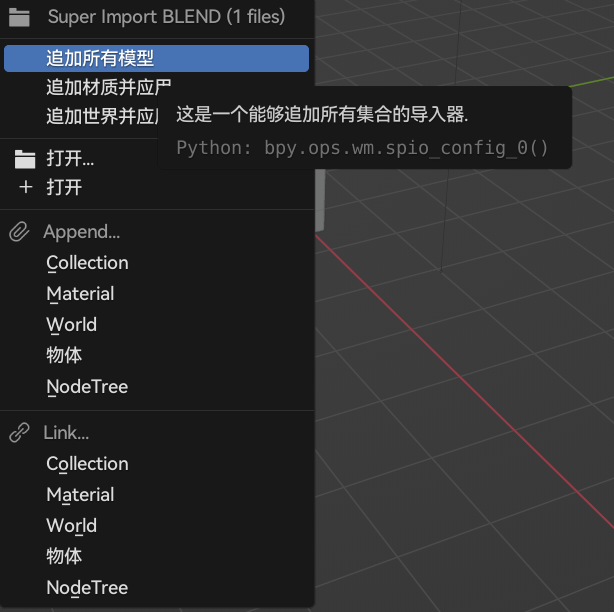
- Blend files, with more detailed append/link style choices.
- Images as reference images, planes, shader nodes, world textures, or asset previews.
- Folders for material and texture workflows.
When multiple custom rules match the same file type, Super IO shows a menu so you can choose the right import preset.
Export
Select objects in the 3D View and press Ctrl+Shift+C to open the export menu. Super IO can export selected objects through Blender's built-in exporters and place the result on the clipboard.
Image workflows can export the current image as a file, and clipboard-aware workflows can paste the output into another app or file manager.
Editor Context
The same copied data can be handled differently depending on the active editor:
- In the 3D View, images can become reference objects or image planes.
- In Shader Editor and Geometry Nodes, images can become texture nodes.
- In Image Editor, clipboard image operations use Blender's image clipboard API.