
Cinema 4D Plugin
Super IO includes a small Cinema 4D plugin for moving data between Cinema 4D and Blender through the clipboard workflow.
Requirements
- Cinema 4D R23 or newer.
- A packaged Super IO release installed and enabled in Blender.
Install
- In Blender, open
Edit > Preferences > Add-onsorEdit > Preferences > Extensions. - Open the Super IO preferences.
- In
Third-party, clickInstall Cinema 4d Plugin. - Click
Install Tutorialto open the bundled plugin folder. - Copy
Super IO for Cinema 4d v0.3into Cinema 4D'spluginsdirectory. - Restart Cinema 4D.
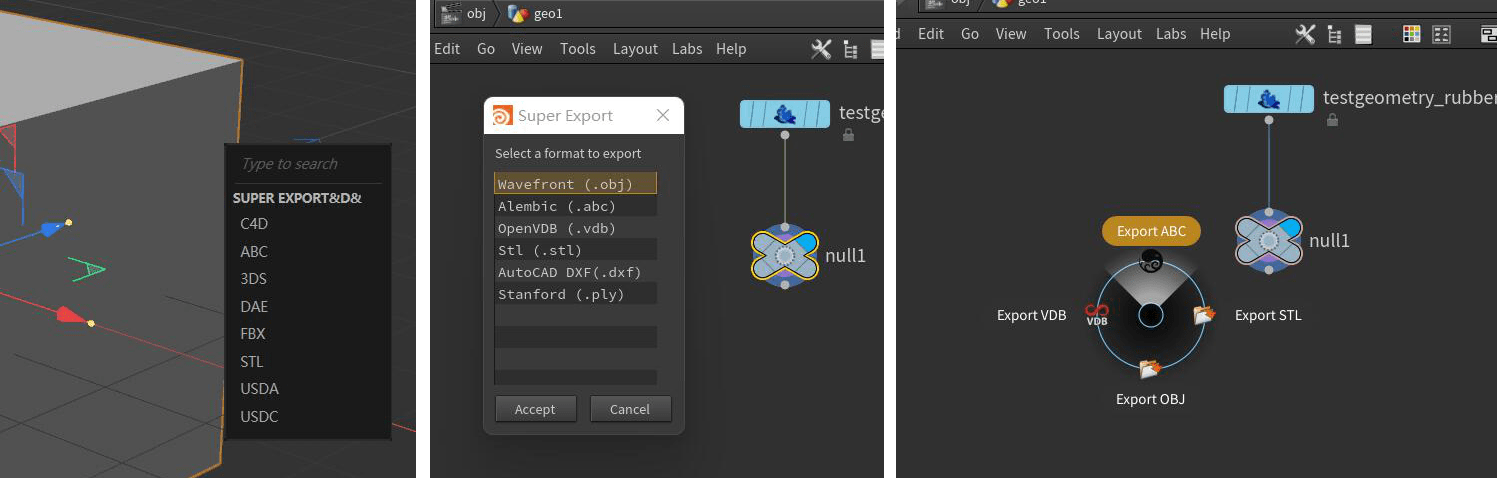
After installation, the Super IO command is available from Cinema 4D's extension menu.
Blender Side
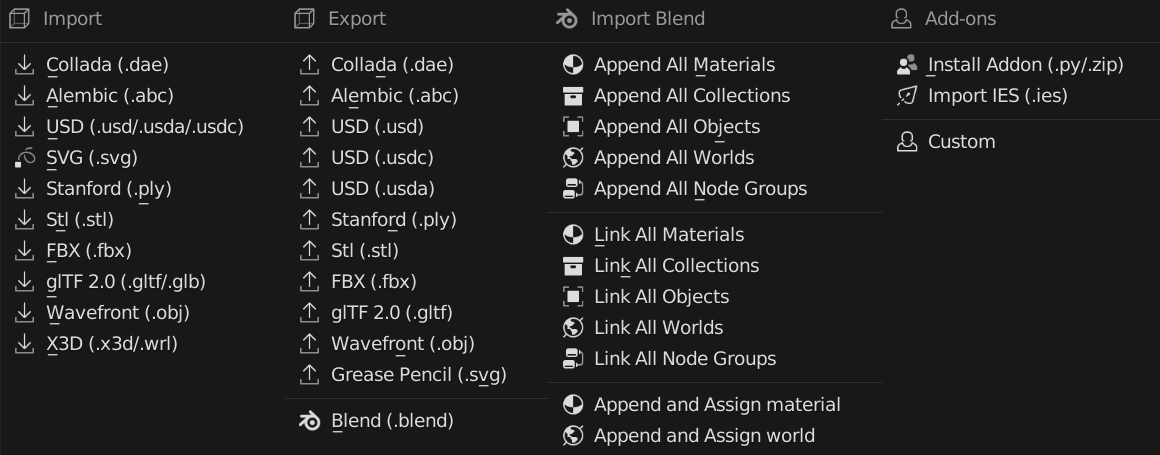
The Cinema 4D plugin is only one side of the workflow. Keep Super IO enabled in Blender and use the normal import and export shortcuts there.
Troubleshooting
If Cinema 4D does not show the plugin, confirm that the copied folder is inside Cinema 4D's active plugins directory and restart Cinema 4D after copying it.
If Blender does not receive pasted files, confirm that Super IO is enabled and that the copied data is a supported file path or clipboard format.